
Useful WhatsApp tips and tricks of 2023
Useful WhatsApp tips and tricks of 2023

Hide your last seen status: If you don't want other users to see when you were last active on WhatsApp, you can change your last seen status in the settings. Go to Settings > Account > Privacy > Last Seen and choose either "Nobody," "My Contacts," or "Everyone."
Create shortcuts for frequently used messages: If you find yourself sending the same message to different people, you can create a shortcut for that message. Go to Settings > Shortcuts > Add New Shortcut and enter the message you want to create a shortcut for. Then, when you type the shortcut, the full message will automatically appear.
Use WhatsApp without a phone number: If you don't want to use your phone number to sign up for WhatsApp, you can use a virtual phone number instead. There are many services available online that provide virtual phone numbers for free or for a small fee.
Schedule messages: If you want to send a message to someone at a specific time, you can use a third-party app like SKEDit or Schedule WhatsApp Message to schedule the message in advance.
Mute group chats: If you're part of a group chat that's constantly buzzing with notifications, you can mute the chat for a set amount of time. Open the group chat, tap on the name of the group, and choose "Mute notifications."
Pin chats: If you have important chats that you don't want to get lost in your conversation list, you can pin them to the top of the list. Simply swipe right on the chat you want to pin and tap on the pin icon.
Use WhatsApp on airplane mode: If you want to read a message without the other person knowing that you've read it, you can put your phone on airplane mode before opening the message. After you've read it, close WhatsApp and turn off airplane mode.
I hope these tips and tricks help you get the most out of WhatsApp!
How to delete whatsapp message from group
Note : You can delete the message or image or video up-to 7 minutes after sending it. after that you can't do anything. It means deleting time is only 7 mins after sending anything.


How to make WhatsApp a storage device for your Personal data


How to use WhatsApp on your personal computer / MAC
How to Mute Individual Contact or Group in the WhatsApp

1. Open WhatsApp
2. Go to individual contact or group in the WhatsApp
3. Go to menu (Click the 3 dots in the top-right corner)
4. Click to mute
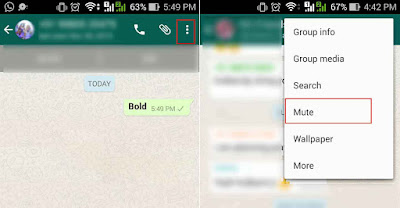
4. You will get the 3 options “8 Hours”, “1 Week” or “1 Year”
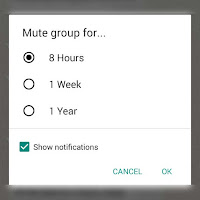
5. Choose the option and it will be Mute.
Thanks! Hope you like it, Please Like us on Facebook, Follow us on Twitter and Google+
WhatsApp is going to share your mobile details with Facebook - how to stop it

WhatsApp new plan is to share your mobile details with Facebook for better friend suggestions and show us more "relevant ADVERTISEMENTS" if we have an account with them.
So If you don't agree, please follow this simple instructions.
Go to your mobile WhatsApp “Settings > Account > Share my account info” in the app.
You can uncheck the box next to “Share my account info”.

If you have already agreed to the updated Terms and conditions, you can decline by selecting.
YouTube secret tips and tricks - 2

1. Wanna Download the specific YouTube video. Type SS before YouTube “SSYouTube” in the URL for any video and see the magic.
Example - https://www.ssyoutube.com/watch?v=5Uhe2nAzKUw


2. Wanna watch the 360° videos on YouTube. Click here It works Awesome on Mobile.

3. Make your YouTube Funny. Paste this on YouTube search (use the force luke) without bracket and see the magic.

Example :- https://www.youtube.com/leanback

YouTube secret tips and tricks - 1

Some time saving YouTube shortcuts.
- To Full-screen mode Press F
- To pause a video: Press K
- To skip 10 seconds rewind and forward: Press J and L
- To Mute: Press M
- To“Shift + > key” will increase the playback speed. “Shift + <” will decrease it
- For Subtitle: Press C
- Wanna change the color of Subtitle: Press B
- Use Number Keys (1,2,3...) to rewind and forward of the video
How to remove your Number from TrueCaller Database

If you want to remove your mobile number from True Caller.
Please follow these simple instructions.
- Go to this website > http://www.truecaller.com/unlist
- Write your Phone Number
- Click the check box (reasons for un-listing your number)

- Click on Un-list Button, you will get a below message, click OK and proceed

It might take 1 - 24 hours to remove your number from Truecaller database. Thanks!

How to Change Your WhatsApp Phone Number without Reinstalling
Next time if you want to change your mobile number, there is no need to Uninstall and Reinstall WhatsApp. Just follow some simple steps and your WhatsApp account will migrate to another no.

Go to WhatsApp Settings > click on Account > click on change number
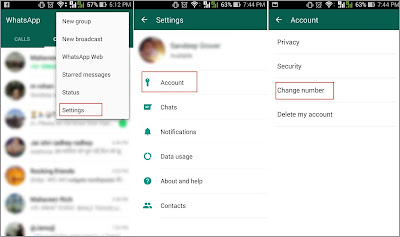
Now you will see change number option, please click on Next > write your old mobile number first and then new mobile number and click on > Done
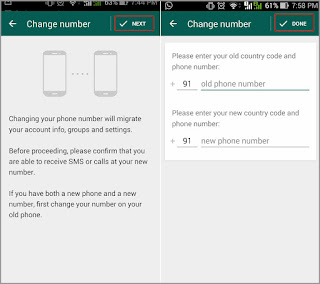
Please verify your new number, and all your chat, history, groups will be transferred to the new number. Now your WhatsApp is ready for use with different mobile number.
How to use WhatsApp on your personal computer / MAC
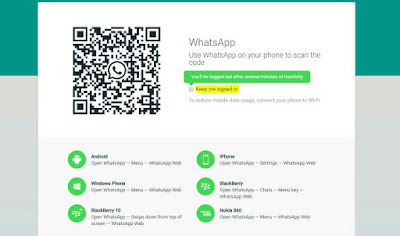
1. Go to this website https://web.whatsapp.com/
2. After opening this link, you will see a QR code to scan from your mobile. Click on “Keep me signed in” box.
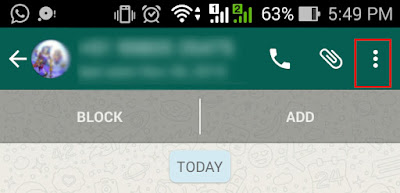
3. Open WhatsApp on your mobile and click on three dots in upper right corner.
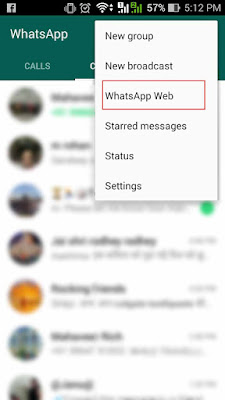
4. Select WhatsApp Web in the drop down.
5. Click on + sign.
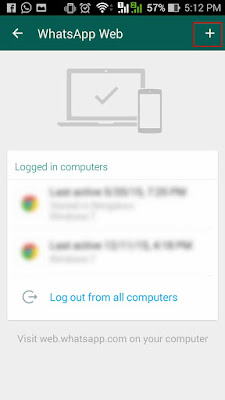
6. Now you will see a QR code scanner, Scan the QR code in your system and mirror the device.
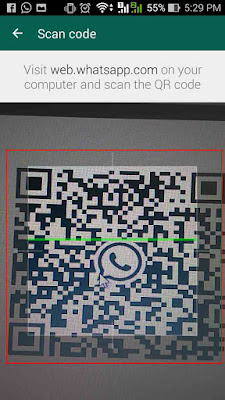
7. Your PC is connected with WhatsApp and your will get the below screen.
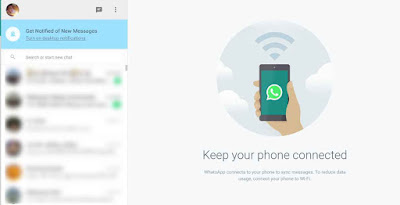
Now you can use WhatsApp on your PC as well as on Mobile. You need to follow these process only once, next time open this website https://web.whatsapp.com/ and your Web WhatsApp is ready to use. If you want to disconnect WhatsApp from your PC, Please logout. Thanks!!
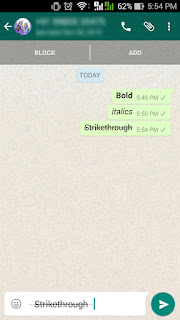
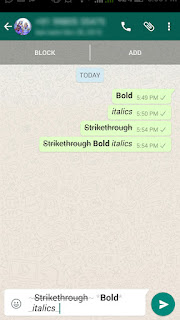
How to change text in bold, Italics and stirkout on whatsapp
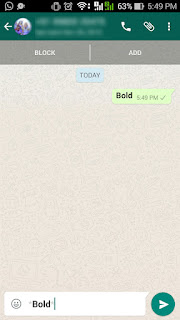
2. Add underscore _ to both side of the word _Italic_, it will change your text to Italics.
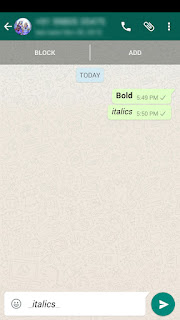
3. Add tilde ~ to both side of the word ~
A new feature in WhatsApp latest version 2.12.560

A new #feature in WhatsApp, if you want to reply a specific msg.....now you can do it.... select the post u want to reply... you will see a curved left arrow. Select that and you can type your answer. Its like a tread message.
You can see the #Curved arrow in below image.

It works for IOS and Android as well.


